How AI product photography works on Kreyta
You take one clear photo of the product. Kreyta keeps the product itself, the label, the shape, the colour, and builds a new scene around it. Your perfume bottle can sit on luxury marble, your sneakers can stand on a clean white studio floor, your zobo can be on a busy market stall. Nothing about the product is redrawn, so what the customer receives is what they saw.
Each make gives you 2 to 4 variations of the scene, so you can pick the best one or use them all in a carousel. You can do several products in one go with the same scene, which keeps a whole catalogue looking consistent.
Scenes you can pick
Choose a ready scene or describe your own in words.
- Clean white studio, for catalogues and marketplaces
- Soft pastel, for beauty, baby and gift items
- Luxury marble, for perfume, jewellery and skincare
- Wooden table, for food, drinks and handmade goods
- Outdoor Lagos street, for fashion and lifestyle
- Market stall, for food, fabrics and everyday goods
- Kitchen, Beach, and Festive (Christmas or Sallah)
- Custom scene: write it, for example 'on a dining table set for Sunday rice'
Sizes for every place you sell
Pick the size before you make: Instagram square (1080 by 1080), Instagram portrait (1080 by 1350), Story or Status (1080 by 1920), or the Jumia and Jiji white square. Square is the safe default for marketplaces and WhatsApp catalogues. Portrait takes more of the screen on Instagram feed. Story size is for Status and Stories.
How to take the phone photo
The better your starting photo, the better the result. You do not need a ring light. Stand near a window in daylight, put the product on a plain surface, and fill most of the frame with it. Wipe the bottle or shoe first: dust and fingerprints stay, because Kreyta keeps your product as photographed.
Shoot straight on for labels so the text is readable, and from a slight angle for shoes and bags so they look solid. Avoid flash, which makes hard shine on glass and plastic. If the item has a front and a side worth seeing, take two photos and run both.
- Daylight near a window, no flash
- Product fills most of the frame
- Label facing the camera and in focus
- Clean the product before you shoot
Prices stay yours
Kreyta only draws words you type. It never invents a price or a discount on your picture. If you want the price on the image, write it, or make a flyer from the photo with the Flyer tool so the price, your logo and your contacts are laid out properly.
How it works
Upload your phone photo
One clear photo per product. You can add several products at once.
Pick a scene and size
Clean white, marble, Lagos street, market stall or your own words, then square, portrait or Status size.
Get 2 to 4 variations
See the price in credits first, then pick your favourites from the results.
Post or list it
Download and use on Instagram, WhatsApp catalogue, Jumia, Jiji or your website.
Examples
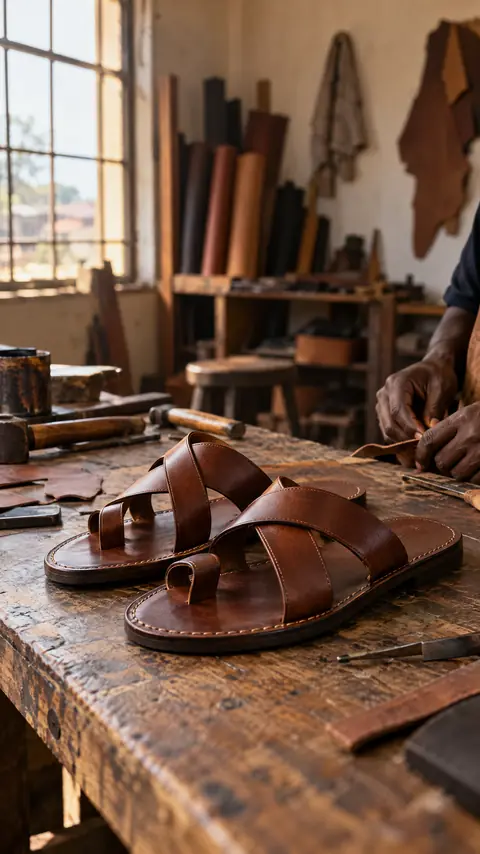
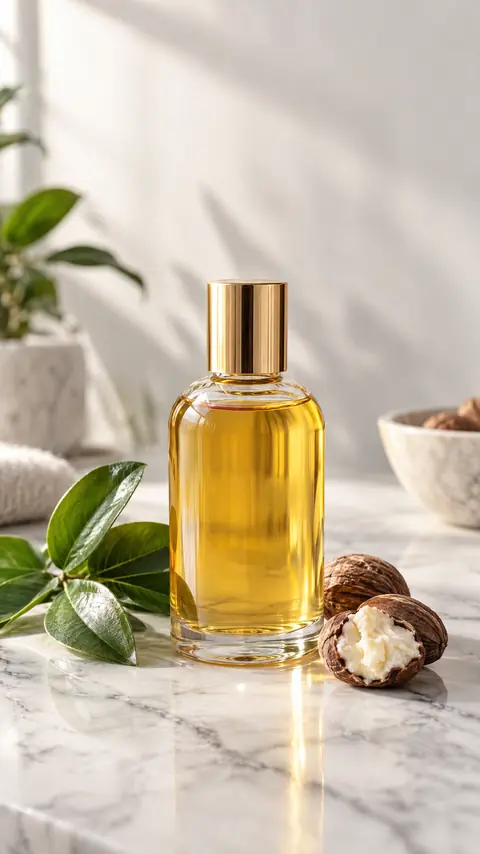
Questions and answers
Will Kreyta change how my product looks?
No. The product is kept exactly as photographed. Only the background and the scene around it are new.
Can I just remove the background?
Yes. Product photos also does background removal: you get a cutout with a transparent background, and a white version for marketplaces.
How many products can I do at once?
You can add several products in one make with the same scene, which keeps your catalogue consistent.
How much does it cost?
Scene photos are priced per photo made, and you see the total before you start. New accounts get 3 free credits once, and 1 credit is about N1,500 on the cheapest pack.
Can I make a video from my product photo?
Yes. Take any result into Photo to video for a 5 or 10 second moving clip, or use the Launch my product Playbook for photos, a flyer, a video and captions together.